Quick answer: To scan artwork for printing, clean the scanner glass, scan at 300 PPI at your final print size in RGB colour, switch off automatic corrections, and save the master as an uncompressed TIFF. If you want to print larger than the original, scan at a higher resolution. For large, textured or glossy work, professional capture gives the most accurate result. Once your file is ready, you can upload it straight to our online print designer.
A great giclée print starts with a great file. However skilled the printer, a print cannot contain detail or colour that the scan did not capture. This guide walks you through scanning your own artwork properly, and explains when it is worth having it professionally captured instead.
Scanning vs photographing your artwork
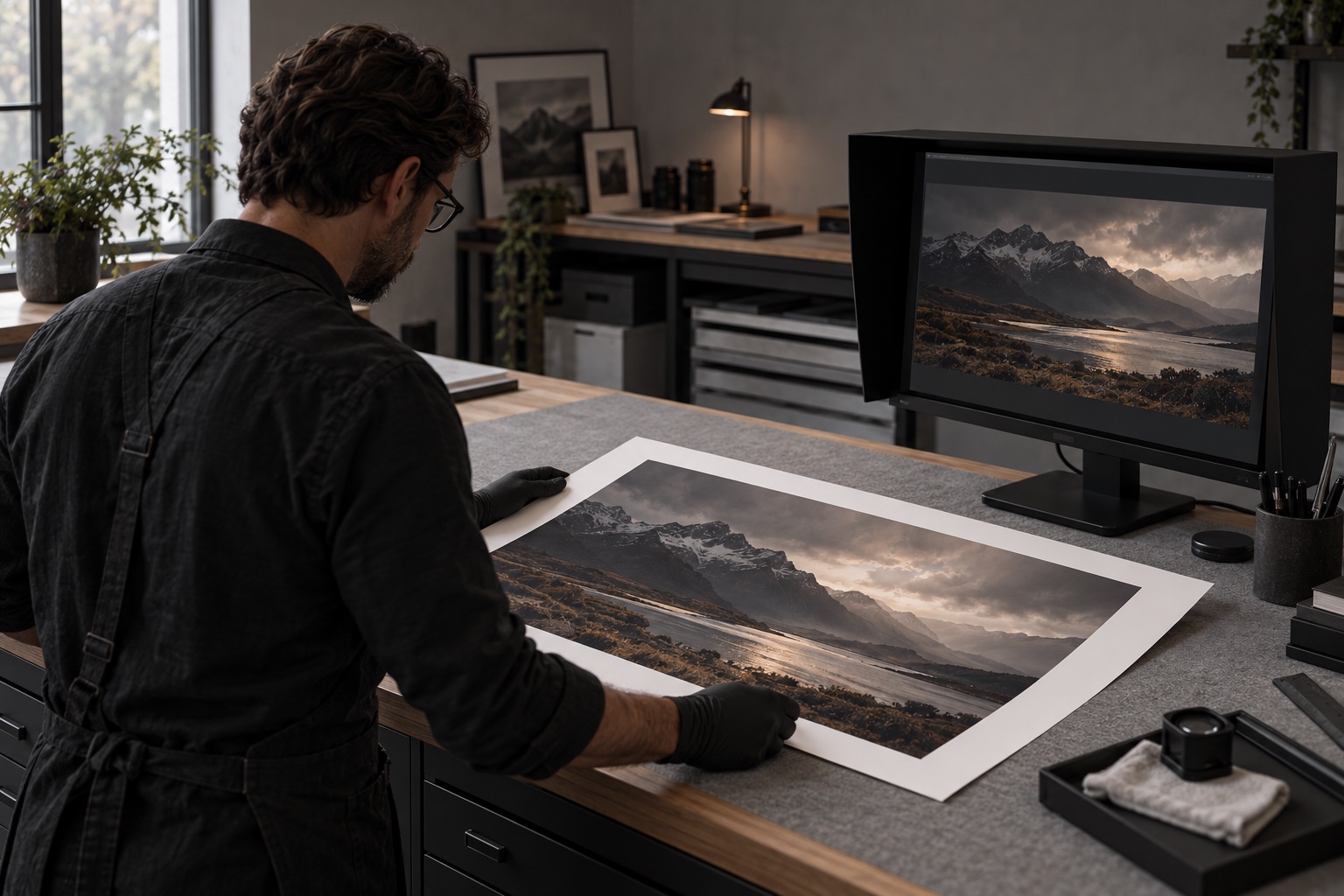
There are two ways to digitise artwork: a flatbed scanner, or a camera on a copy stand with controlled lighting.
- Scan at home when the work is flat, smaller than your scanner bed and has little surface texture. Watercolours, drawings, pen and ink, pastels behind glassine and prints all scan well.
- Photograph or use professional capture when the work is large, framed, on canvas, heavily textured or glossy. Oil and acrylic paintings reflect light unevenly on a scanner and the texture creates shadows.
What you need
- A flatbed scanner with an optical resolution of at least 600 PPI, ideally 1200 PPI or more
- A lint free cloth and glass cleaner for the scanner glass
- The scanner manufacturer’s own software, or an editor such as Photoshop or Affinity Photo
- A calibrated monitor, if you want to judge colour accurately
Step by step: how to scan artwork for printing
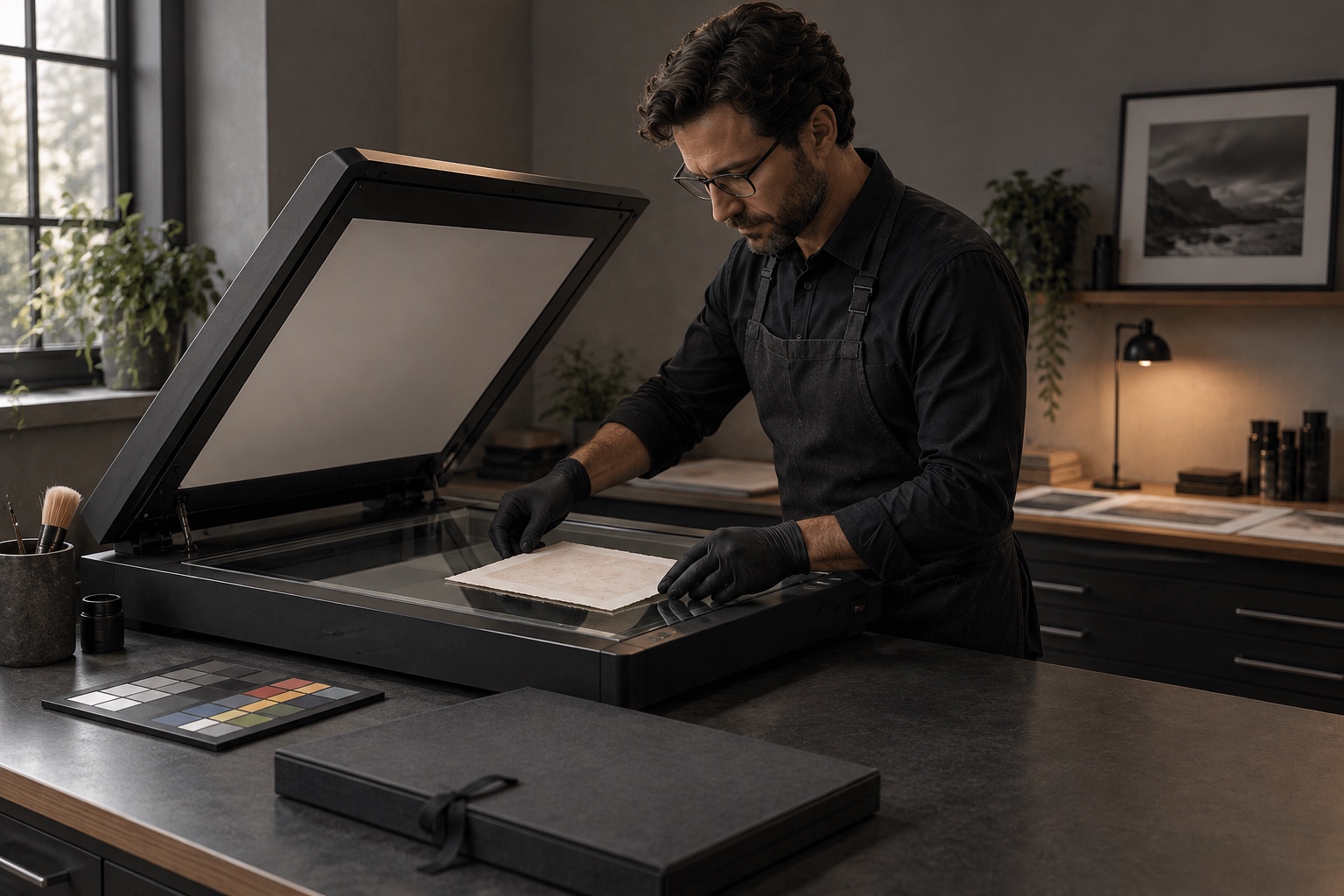
- Clean the glass. Every speck of dust will show up in a high resolution scan.
- Place the artwork face down and square. Keep it flat with the lid closed. If the paper is cockled, place a clean sheet of card behind it to apply even pressure.
- Choose RGB colour. Scan in RGB at 24 bit, or 48 bit if your scanner offers it, for the smoothest tones. Giclée printers reproduce a wider range of colour from RGB files than CMYK. Our guide on RGB vs CMYK explains why.
- Set the resolution. Use 300 PPI at the final print size. To print at the same size as the original, scan at 300 PPI. To print at twice the size, scan at 600 PPI.
- Turn off automatic corrections. Disable auto exposure, sharpening, dust removal and colour restoration. You want a neutral, faithful capture that you control.
- Preview and scan. Crop slightly beyond the edge of the artwork so nothing is lost.
- Save as TIFF. Keep an uncompressed master file and work on a copy.
Getting the resolution right
Resolution is the most common cause of disappointing prints. The number that matters is the pixel count at the size you want to print.
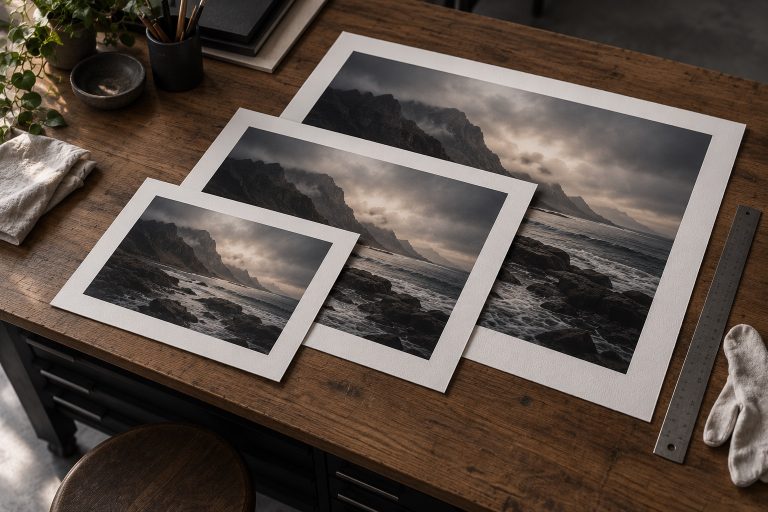
| Print size | Pixels needed at 300 PPI | Minimum at 150 PPI |
|---|---|---|
| A5 (14.8 × 21 cm) | 1748 × 2480 | 874 × 1240 |
| A4 (21 × 29.7 cm) | 2480 × 3508 | 1240 × 1754 |
| A3 (29.7 × 42 cm) | 3508 × 4961 | 1754 × 2480 |
| A2 (42 × 59.4 cm) | 4961 × 7016 | 2480 × 3508 |
| A1 (59.4 × 84.1 cm) | 7016 × 9933 | 3508 × 4967 |
For most work, 150 PPI at the final size is the minimum we recommend, and 300 PPI gives the crispest detail. Our online designer checks the resolution of your upload and warns you if it is too low for the size you choose.
Editing your scan before printing

- Compare with the original in daylight and adjust levels gently so whites and darks match.
- Remove dust spots with a healing or clone tool.
- Straighten and crop carefully, leaving the edges of the work intact.
- Do not over sharpen. A little sharpening for print is fine, but halos around edges will show.
- Keep it RGB and embed the colour profile, ideally Adobe RGB or sRGB.
For more detail, read our guide on preparing artwork files for giclée printing.
Common scanning mistakes
- Scanning at a low resolution and enlarging later, which creates soft, blocky prints
- Leaving automatic colour correction on, which shifts your colours
- Saving as a heavily compressed JPEG, which adds blotchy artefacts
- Scanning textured paintings, which creates glare and shadows
- Stitching large work from sections without matching exposure
When to use professional artwork capture
If your artwork is larger than A3, painted in oils or acrylics, framed behind glass or destined for a limited edition, professional capture is worth it. A colour calibrated studio setup captures texture without glare and produces a file you can reprint for years. We can arrange professional capture of your original and colour match a proof to it before printing. Call us on 01182 076591 to talk it through.
Frequently asked questions
What resolution should I scan artwork for printing?
Scan at 300 PPI at the size you want to print, or at least 150 PPI for large prints viewed from a distance. If you plan to print larger than the original, scan at a higher resolution, for example 600 PPI to print at twice the original size.
What file format is best for scanned artwork?
Save the master scan as an uncompressed TIFF to keep every detail. You can then export a high quality JPEG for uploading if needed. We accept JPEG, PNG, TIFF and HEIC files up to 50MB.
Can I scan artwork that is bigger than my scanner?
You can scan large work in overlapping sections and stitch them together in software such as Photoshop, but it is easy to get visible seams and uneven lighting. For large or textured originals, professional capture usually gives a far better result.
Should I scan or photograph my artwork?
Flat artwork smaller than your scanner bed can be scanned well at home. Large, framed, textured or glossy work, such as oil and acrylic paintings, is better photographed professionally with controlled lighting and colour calibration.
Do you offer professional artwork scanning?
Yes. We can arrange professional capture of your original artwork and colour match a proof to the original before printing. Call us on 01182 076591 to discuss your artwork.
Ready to print your artwork?
Upload your scan to our online print designer, choose from our fine art papers and see your price instantly. Prints start from £4.99 including VAT. See our giclée printing price guide, or find out more about printing for illustrators and our fine art printing services.
Made for your artwork
Bring your artwork to paper
Choose your paper, set your size and see your price in our online print designer. For advice on your project, talk to our studio.